OK... I followed these instructions to the letter.
Here's how to add a custom background image to your AppRadio as suggested by Mike DeCaro (@mikedecaro). I have confirmed this and it works as seen in the picture above.
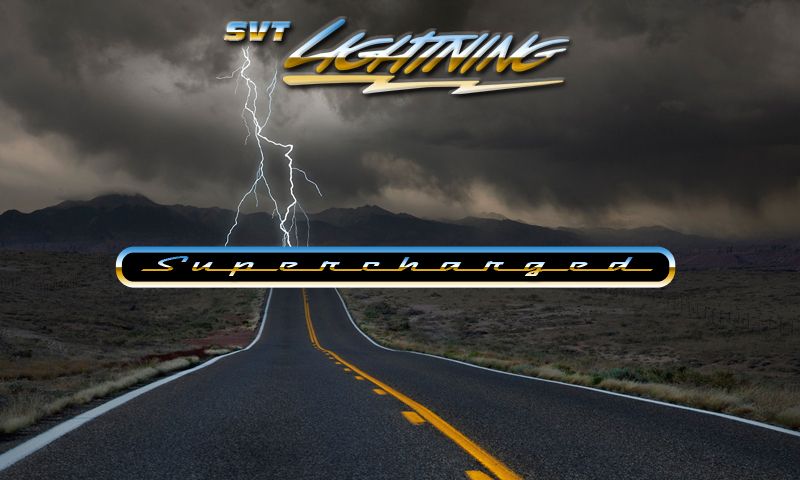
- Find a suitable background image you'd like to use with your AppRadio. (Done - Created the image below in Photoshop)
- Adjust the size of the image to 800x480 resolution. (Done)
- Save/convert the image file to a Portable Network Graphics or PNG image (you can do this in Preview on a Mac in the Save options). (Done)
- Rename the image file to "Background.png" without the quotation marks. (Done)
- Open up iTunes and connect your iDevice to the computer. (Done)
- Click on your device's name in iTunes and then click "Apps". (Done)
- Find the AppRadio app in the File Sharing menu at the bottom of the page. There should be a box labeled "AppRadio Documents" next to it. (Done)
- Click "Add..." below. (Did this and I now have two png images showing on the RHS column)
- Select your "Background.png" image file and click "Open". (There's no "Open" button nor can I right-click and open... stuck here)
- Sync your iDevice to iTunes.
After the Sync is complete simple connect your iDevice to the AppRadio and launch the AppRadio app. Your custom background image will now show up. Thanks again to Mike DeCaro for this awesome tip.
Here's my image in JPG format (but I did try both EPS and PNG):
And here's what the iTunes Window looks like:
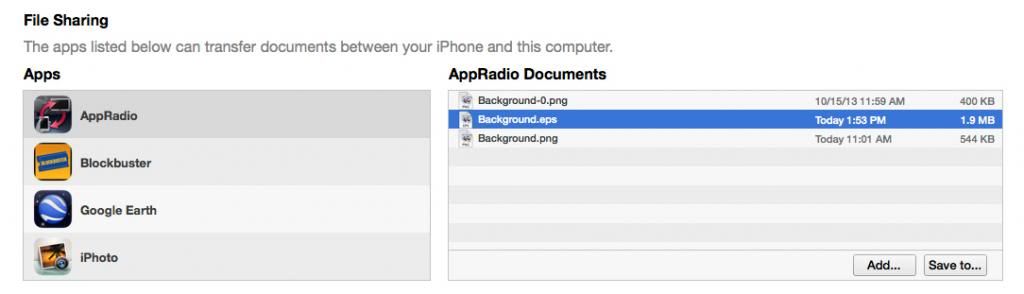
So how do I "Open" the file like the instructions say? And even though I've sync'd the phone 3-4 times... the only images I'm seeing in the AppRadio app are the default ones. TIA for any/all help.
Mike