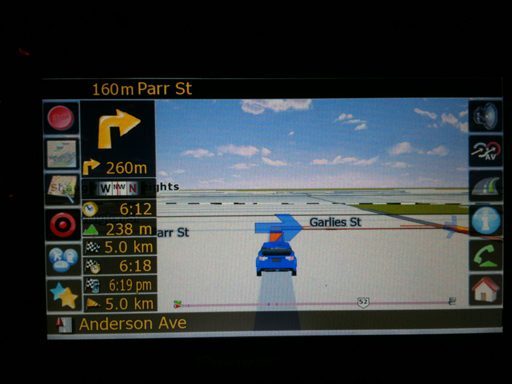
here's my skin#3
for more pictures you could also look here http://avic411.com/forum/viewtopic.php?f=34&t=28376&start=0#p195485
what's in it;
-av button hide/unhide (VR only works when av button is not hidden)
- phone shortcut on the main screen
-map changer option (extracted from GURJON half patch)
-fuel calculation (only when navigating) (extracted from GURJON half patch)
-created infoscreen, based on DIAFTA's split screen (only when navigating)
-includes shortcuts for POI, DELETE ROUTE, VOICE GUIDANCE MUTE, TRIPCOMPUTER and MAP
-onscreen trip computer can be accessed by pressing the time (with or without route)
-welcome greeting (credits to N-S-E-W)
-to change the welcome greeting go to the audio folder in your DATA.zip and change the !welcome.ogg to your selected tone, be sure to have rename it as !welcome
-screen off
-address shortcut button (onlongclick will go to history)
-poi shortcut button (onlongclick will go to poi search by location)
-navi setting button
-return home button
-route info button when with a route
-navigation guidance mute button
-delete route button
-simulation controls
-speedcam
-speedcam warning display option (FULL or SIMPLE)
-speedcam spoken alert
-speedcam spoken alert volume slider
-beep warning distance
-speedcam mute/hide
-changed route function lay out
-MSN button for MSN users, TMC button for TMC users
-multi-route
-trip computer
-tripcomputer onscreen by pressing the current speed (with or without route)
-road blocking
-manage screen
-snap to road option
-building setting
-plan mode screen
-multidraw on long click of multiplan button
-included in the download is a bunch of schemes, i edited the scheme to have different colors for the multidraw screen including the edited stock pioneer schemes
-if you want different sky on your nav just replace sky.bmp on GFX/DAY and GFX/NIGHT on the data.zip
-UK style speedlimit sign (using the EU file)
-signpost on/off setting
-added a ROAD SIGN settings page for speedlimit sign, sign post, turn restriction etc
-software bypass
-return button on plan mode screen onlongclick will return to map screen
-current speed on map screen
-on/off setting for current speed
-elevation sign on map screen
-on/off setting for elevation sign
-added lane guidance option
-on/off setting for lane guidance
-reduced the size of the signpost
-more visible route information
-added 2 more boxes for the displayed info instead of pressing it to toggle (all infos controlled in the displayed info setting)
-navigation cruise page when compass area is pressed (onrelease=simple and onlongclick=advanced) extracted from gj skin
-added a custom setting button on the navi setting screen
-added a navigation text color setting (for the streetnames, next streetname, distance etc, also controls the time)
-navigation progress bar,
-on/off setting for navigation progress bar
-currently this has the subaru impreza rally car as the default 3D car
to change the 3D arrow to a car model
download the 3DCars.rar file on the download link provided and extract it
and you have to edit the sys.txt
change the current values of this
3dcarsizemin=2500
3dcarsizemax=5000
3dcarsizemul=15000
to this
3dcarsizemin=5000
3dcarsizemax=8000
3dcarsizemul=30000
and add this part to the [3D] section
car_day=hot_rod_red.mdl
car_night=hot_rod_red.mdl
ghost_day=hot_rod_red.mdl
ghost_night=hot_rod_red.mdl
you now have to transfer the desired carmodel and tex file to the gfx folder in the data.zip and change the names of the above code to your selected car model name, i haven't tested every car model out as i already like the hot_rod car, but it's just a trial and error thing
for speed camera
you have to search for speed camera text file for your area,
there are 2 versions of this mod, 1 for standard (regular, MSN and TMC) and 1 for alternate (regular, MSN and TMC)
the reason i created two for each is because of the unit setting varying from different locations (setting a speed camera), so if the first one doesn't work for you then use the one with the alternate at the end of the filename
INSTALLATION: Please read carefully
1) first off this is not an auto installer, download your desired zip (regular or alternate)
2) extract files and transfer all files to a freshly formatted SD card (for F500 users, you have to edit the device type part first to reflect the device type of the F500 before transfering it to the SD)
3) this already has testmode file so no need to add anything else
4) insert SD to unit,
5) boot up unit
***if this is your first time,PLEASE BACK UP YOUR FILES
6) copy DATA.ZIP and SYS.TXT (from standard, MSN or EU folder),EXTENSION folder and DS-DIGI file to MYFLASHDISKAPL2IGO
7) go to MYFLASHDISKAPL2IGOCONTENT and create a new folder and name it as map_nt and copy basemap.fbl from map folder to map_nt folder, this is where you're going to place your navteq maps
 to add a different scheme, add the contents of scheme folder to MYFLASHDISKAPL2IGOCONTENTSCHEME
**IT'S MANDATORY TO DELETE THE SAVE FILES, it's in My Flash DiskUSERUserDataiGosave, everything should be deleted
9) once done copying turn off the unit, remove sd card and then turn unit on,
NOTE to users, some users use gallons so here's instructions for it,
this is assuming that your in testmode
1) go to MYFLASHDISKAPL2IGOExtensionFuelcalc and delete the contents,
2) copy the contents of the zip to that folder,
3) DELETE THE SAVE FILES, it's in My Flash DiskUSERUserDataiGosave, everything should be deleted
for people who want to use custom branding.zip to delete kml.icon from data.zip (DATA.zipui_pioneericonspoikml.icon). (thanks to jezikk for pointing it out)
if you find any bugs please post em up so i could get it fixed
any comments, suggestions, requests are welcome, i will try my best to please everyone
any donations thru paypal are very much appreciated <!-- e --><a href="mailto:[email protected]">[email protected]</a><!-- e -->
DOWNLOAD LINK http://www.4shared.com/account/dir/8gU2eL5q/sharing.html?sId=SFq6GIOF8vMtDtea


 , here's what you'll need,