📌 Pinned
STEP BY STEP GUIDE TO MAKING CUSTOM BACKGROUNDS
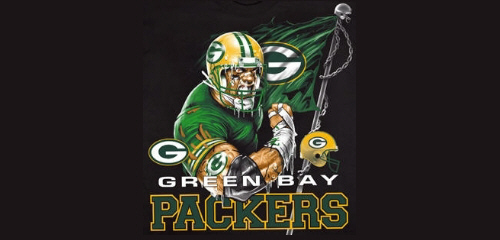
Posted Apr 02, 2007 · 04:06 UTC#27
will this also work for the D3?
Posted Apr 03, 2007 · 19:20 UTC#28
***BUMP*** Will it work on the D3?
Posted Apr 03, 2007 · 19:22 UTC#29
***BUMP*** Will it work on the D3?
Posted Apr 08, 2007 · 21:01 UTC#30
No, D1 & D2 only.
Posted Apr 08, 2007 · 22:25 UTC#31
JasonH said:No, D1 & D2 only.
he isnt the admin for nothing.
Posted May 05, 2007 · 15:18 UTC#32
Ok, I finally got the disc to burn correctly where it will boot up. The problem that I am having now with me D2 is the the pic is scrambled up or will not load at all. Any suggestions?
Posted May 05, 2007 · 17:51 UTC#33
NM, i figured it out. I had to disable the auto resize. The magic formula is like said before 500x240 72dpi. My advice is just to make sure that your PIM file is the exact same file size as the factory ones. These are a couple that i did.
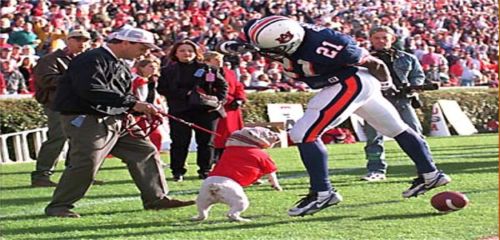
UGA Bites.jpg

Blue Ford Racing.jpg
Posted May 15, 2007 · 00:53 UTC#34
I followed the instructions for SL burning and got my backgrounds on no problem. Thank you!
BUT there is a LACK of information on how to do the Startup picture. Some threads say to replace BGOPEN.JPG some say replace BGOPEN2.jpg and regardless, I think there are a few of us here whom cant seem to make it work.
The only info I got was that my startup logo was to small in size (8kb). I fixed that and made it 38KB with NO LUCK.
Yes I reset it too.
This sucks! The info here is not complete and the help doesnt come to often.
POO! I say POO!
BUT there is a LACK of information on how to do the Startup picture. Some threads say to replace BGOPEN.JPG some say replace BGOPEN2.jpg and regardless, I think there are a few of us here whom cant seem to make it work.
The only info I got was that my startup logo was to small in size (8kb). I fixed that and made it 38KB with NO LUCK.
Yes I reset it too.
This sucks! The info here is not complete and the help doesnt come to often.
POO! I say POO!
Posted May 21, 2007 · 09:51 UTC#35
ramman949 said:I followed the instructions for SL burning and got my backgrounds on no problem. Thank you!
BUT there is a LACK of information on how to do the Startup picture. Some threads say to replace BGOPEN.JPG some say replace BGOPEN2.jpg and regardless, I think there are a few of us here whom cant seem to make it work.
The only info I got was that my startup logo was to small in size (8kb). I fixed that and made it 38KB with NO LUCK.
Yes I reset it too.
This sucks! The info here is not complete and the help doesnt come to often.
POO! I say POO!
same here...:(
Posted May 21, 2007 · 19:06 UTC#36
i get a Data read error when i try to load them up...what did i do wrong?
Posted Jun 08, 2007 · 13:05 UTC#37
Ok, I need some suggestions. I successfully made a new map disc last night, however my images appear pretty pixelated. I am going to try and burn another disc tonight using a different PIM creator and see if that solves the problem.
Any other suggestions? Is there a limit to how many colors can be displayed? All the pictures I used were at one time high res. pics?
Thanks!
Any other suggestions? Is there a limit to how many colors can be displayed? All the pictures I used were at one time high res. pics?
Thanks!
Posted Sep 03, 2007 · 22:41 UTC#38
hey i have downloaded cndv 70mtp torrent
its a mdf file, i opened it and when i go to the bg folder it only have bgmain.pim file, doesnt have the pim2din folder
could i make a folder saying pim2din and put my pim pics in there??
and also would like to know what to do for startup screen
thx
its a mdf file, i opened it and when i go to the bg folder it only have bgmain.pim file, doesnt have the pim2din folder
could i make a folder saying pim2din and put my pim pics in there??
and also would like to know what to do for startup screen
thx
Posted Sep 04, 2007 · 03:27 UTC#39
jokers000 said:hey i have downloaded cndv 70mtp torrent
its a mdf file, i opened it and when i go to the bg folder it only have bgmain.pim file, doesnt have the pim2din folder
could i make a folder saying pim2din and put my pim pics in there??
and also would like to know what to do for startup screen
thx
It IS there, it is hidden, you can see it if you use ISObuster
Posted Nov 20, 2007 · 04:46 UTC#40
i see you have posted about putting new pics on the d1/2, what do you have to do to get pics up on a d3. it tells me from loading on to a cd-r turn dvdr that there is no file with pics of jpeg to load from. i think i need to change the pictures into jpeg. i am not anykind of computer geek. someone got any ideas.
Posted Dec 22, 2007 · 00:10 UTC#41
I have been reading the chat's but I can't find how to do a background mode for a D3. Can someone point me the right direction. I am sure it's out there.
Posted Dec 22, 2007 · 00:13 UTC#42
I have been reading the chat's but I can't find how to do a background mode for a D3. Can someone point me the right direction. I am sure it's out there.
Posted Jan 03, 2008 · 22:28 UTC#43
i need the same help as cowboy. == how to put pics up on a d3?
Posted Jan 10, 2008 · 14:22 UTC#44
need help!! i'm trying to put the pictures on the background but having a hard time doing this . can someone give me step by step on how to do it? so far i downloaded the dvd decrypter and stuck on step 6 dont know what else to do HELP ME PLEASE!!!!!
Posted Jan 10, 2008 · 14:25 UTC#45
oh and i have the avic-d2 and the nav. cd is version 1.0.
Posted Jan 25, 2008 · 15:44 UTC#46
How can I do this with a mac? These programs are pc only! HELP!
Posted Feb 20, 2008 · 22:18 UTC#47
JasonH said:NOTE: THIS IS FOR THE D1 AND D2 ONLY!
1. Download "Jerry's PIMMGR" HERE: http://www.avic411.com/forum/download.php?id=6
2. Make the image you want using a image editor of some kind and using PIMMGR and save it as a .PIM. NOTE: JPEG -> PIM has some problems, I reccomend using common colors the D1 allready knows (Blue, Black, White, etc).
3. Take the NAV DVD you use and stick it in your computer.
4. Download "DVD Decrypter" Here: http://fileforum.betanews.com/detail/1011845169/1
5. Open DVD Decrypter, click mode, ISO, then read.
Then click the big button at the bottom.
6. Once the iso making is done, open the image with a ISO Editor, such as UltraISO. (or for you mac users, use OSX :P )
*SKIP THIS STEP IF USING A Dual Layer DVD*
7a. Navigate to /IDX/
7b. Delete:Ballerinstaller said:POIDT004.IDX, POIDT043.IDX, POISR201.IDX through POISR207.IDX
*RESUME STEPS*
8. Navigate to /BG/PIM2DIN/
9. Add the custom .PIM file you created.
10. Save the ISO
11. Burn the ISO with Nero (or equivilant)
12. Insert Burned DVD into D1.
13. Select your custom wallpaper file. The D1 will load it.
13a. DUAL LAYER ONLY: YOUR DONE!
REGULAR DVD:
13b. Eject the DVD and put the stock one back in.
14. YOUR DONE!
So i've completed step 5 and I get 3 files a .I00 .MDS & .I01 not an ISO. What do i do?
Also, when you say "(or for you mac users, use OSX )" .... How do I do that ?
Thanks
Posted Apr 05, 2008 · 18:39 UTC#48
Hi guys after many tried i give up :( can anyone make me a disc with jaguar pics and i will pay for it..........email me @ gh0stshadow @comcast.net will pay with paypal..........
Posted Apr 06, 2008 · 00:16 UTC#49
For the Mac users out there, you would need to use "disk utility" to create and burn .ISO's.
Posted Jul 09, 2008 · 03:28 UTC#50
JasonH said:NOTE: THIS IS FOR THE D1 AND D2 ONLY!
1. Download "Jerry's PIMMGR" HERE: http://www.avic411.com/forum/download.php?id=6
2. Make the image you want using a image editor of some kind and using PIMMGR and save it as a .PIM. NOTE: JPEG -> PIM has some problems, I reccomend using common colors the D1 allready knows (Blue, Black, White, etc).
3. Take the NAV DVD you use and stick it in your computer.
4. Download "DVD Decrypter" Here: http://fileforum.betanews.com/detail/1011845169/1
5. Open DVD Decrypter, click mode, ISO, then read.
Then click the big button at the bottom.
6. Once the iso making is done, open the image with a ISO Editor, such as UltraISO. (or for you mac users, use OSX :P )
*SKIP THIS STEP IF USING A Dual Layer DVD*
7a. Navigate to /IDX/
7b. Delete:Ballerinstaller said:POIDT004.IDX, POIDT043.IDX, POISR201.IDX through POISR207.IDX
*RESUME STEPS*
8. Navigate to /BG/PIM2DIN/
9. Add the custom .PIM file you created.
10. Save the ISO
11. Burn the ISO with Nero (or equivilant)
12. Insert Burned DVD into D1.
13. Select your custom wallpaper file. The D1 will load it.
13a. DUAL LAYER ONLY: YOUR DONE!
REGULAR DVD:
13b. Eject the DVD and put the stock one back in.
14. YOUR DONE!
Jason I tried this procedure for my D2. I used Jerrys PIM manager, DVD decripter and ultra ISO. I burned the ISO ( What does ISO mean also lol) with NERO. I removed the POI files from the IDX directory and uploDED TWO pim files to the BG/PIM2DIN Directory
Everything went flawlessly until I tried to load in the new PIM backgrounds on my new ISO disc. Is there an issue with Jerrys PIM manager. I get an unrecognized format and the player defaults back to the standard format. Help Daryll