Search Archive
📌 Pinned

Z1, Z2, and Z3 HDD FAQ

By Pulp_Fiction · Jun 26, 2006in Hacks/Mods💬 99 posts👁️ 102,528 views
Page 1 of 4
Posted Jun 26, 2006 · 17:28 UTC#1
This FAQ will be added to and edited over the next couple of days. A second thread for comments and suggestions will be created so we can keep this one clean. This FAQ currently has some advanced topics, is designed for the person that has some PC hardware experience and can hopefully help with the informal Z1 modification project started here.
Please do not post replies here. Create another thread instead.

Q: What hard drive is in the Z1?

A: The drive in the Z1 is a Toshiba MK3029GACE. This is an automotive quality drive and is little more than a laptop drive enhanced to handle the additional shock of being installed in a moving vehicle.
This is from the Toshiba Website:
The MK3029GACE can withstand operational shock of 200g and non-operational shock of 800g, providing a rugged and dependable option for cars and SUVs as they travel through extreme temperatures and terrains across the globe. The MK3029GACE is ATA-6 compliant, supporting high transfer rates of up to 100 megabytes per second.

Q: What is on the Z1 HDD?

A: The HDD contains 4 partitions. These partitions are named:
LDATA
SDATA
MSV
USER

At this time we do not know fully what the partitions contain as there are thousands of files and folders to dig through. Here are some brief descriptions:
LDATA: This contains the mapping data, voices, Gracenote database and much more. This partition, although not read only, does not appear to be changed when you perform user functions to your Z1. Navi background images are here but not the ones you upload. This is where the opening “Pioneer” splash screen is located.
SDATA: There are some programs here such as the Navi and AV core files. Graphic images for XMBackups of these programs are also here. I assume the Z1 compares files or file signatures and attempts to “fix” itself if needed.
MSV: This is where uploaded music is stored. There is the folder structure to store 1000 different CD’s.
USER: The database for your music and custom changes you have done to your Z1 are stored here. Uploaded wallpaper is here too.

Q: I’ve heard the Z1 runs on Windows. Can’t we just load our own windows programs on it?

The operating system in the Z1 is Windows Automotive and is not on the system HDD it is embedded within the Z1. It is likely on flash memory. The drive is used for data. Mostly maps, uploaded music and the Gracenote database. Windows Automotive is a version of Windows CE. In theory if you can write a program for this OS and processor, load it to the HDD and get the Z1 to run it then Z1 will behave like a low powered computer or PDA.

Q:Can I connect my Z1 drive to my PC?

A:Yes and no. To connect the Z1 HDD to your PC you will need a 2.5” to standard IDE adapter or a USB to 2.5” adapter. Here is an example of the 2.5" to IDE adapter: http://www.mycableshop.com/sku/ST-BRACKET25.htm?x=18&y=28. This one has brackets but any of this type of adapter should work. Both this and the USB adapters have their purpose when working with this drive. You can do everything with the NON-USB adapter but this becomes a pain since you must reboot your PC often. The USB adapter can read and write to the HDD and is hot swappable. That is the Yes part.

The No part is more complicated:

The drive is protected by using the ATA lock standard that has been around for many years. As of the writing of this FAQ the drive can only be unlocked by a drive unlocking service. There is an untested method of swapping the drives while the drive is attached to power which has been discussed elsewhere on this board. I will only be outlining what has been tested to work here.

ATA locking is common in laptops and was very secure until recently. It uses a 32bit password to lock out the user from accessing the drive platters. The password is contained on both the board and the drive platters so drive “surgery” does not work to gain access.

There has been one report of a drive being unlocked from the factory and several reports of the drives being locked. I will assume all drives are locked and the one that wasn’t was the odd case.

Q:How does the Z1 use this lock?

A:The Z1 sends the unlock command with a password to the drive at boot up. This is done before you see the “Pioneer” blue startup screen. We know this because the graphic for startup is located on the hard drive.
The Z1 also does something nasty. It sends the change user password command to the drive also. This has the effect of locking any drive inserted in the Z1 that supports ATA locking. I speculate this is done so that if somebody is sent a replacement drive it will become locked after it is installed. I also speculate this is so each Z1 can have a different ATA password thus preventing the password from being discovered and used elsewhere.

Q: How can I unlock my drive?

A:Power up your Z1, power tilt your screen all the way down like you are going to insert a CD then turn off the power to the unit (turn off the key in your car). The hard drive is located beneath the CD slot. The screw size it T8 torx. Lay a soft cloth on the touch screen to protect it from you. Loosen the 2 torx screws and remove the plastic cover trying not to drop it on the screen. Don’t drop your screwdriver either. Set this aside. The screws are locked into the cover so you should not have a problem with losing them but don’t take chances. The hard drive sits in a metal tray that slides in/out of the opening you just revealed. There is a flexible plastic tab that you can grab with your fingers and pull. The drive will slide out. It fits snuggly but doesn’t require much effort to remove. Turn the drive over and set it on your desk, counter, whatever but use one of those soft cloths (I believe in being nice to this drive since without it I have a very expensive doorstop). There are 4 #1 phillips head screws. Remove them carefully. Do not crush the drive. Do not squeeze the drive with your fingers in the center; you can kill it this way. These are fragile to physical pressure (all laptop drives are). Always handle the drive from the sides.

If you have done everything correctly you should have a 2.5” laptop style drive ready to connect to an adapter to connect to your PC using the NON-USB adapter type specified above.

You will need to connect the drive to your PC (use something like this [url=http://www.newegg.com/Product/Product.aspx?Item=N82E16812119020">http://www.newegg.com/Product/Product.a ... 6812119020) and use an unlocking service. I used this one here: http://hddguru.com/content/en/software/. Download the Magic boot disk and create a boot floppy. You can do this to any hard drive that supports drive locking. If you are increasing the size of your HDD do this to the replacement drive as well or the Z1 will lock it for you. Yes, even a drive you paid for seperately will be locked if inserted in the Z1. The drive doesn't even have to be setup to work in the Z1 to be locked. Connect your HDD to your PC using the IDE adapter (not USB). Connect it to the secondary IDE channel. Disconnect all other drives in your PC just to be safe (you want to be sure you are modifying the correct drive). Boot from the magic boot disk you downloaded. The only drive in your system should be displayed. In my case it is drive number 3. Press 3 and enter.
If no drives are displayed press shift F3 and the list should come up. Now press the number next to your drive.
You should be at a command prompt named MHDD>
Type MHDD and press enter.
Now type EID and press enter.
This should display a log of information about your drive.
Here is the info from the stock drive.
TOSHIBA MK3029GACE LBA:58,605,120
SN:26TPxxxxx FW:RB102A
Supports HPA LBA MS16 DMA (UDMA5,MWDMA2)
SMART: Enabled Selftest: Suported ErrorLog:Supported
Security: high, OFF. Size = 28615MB

You should be back at the MHDD> prompt.
Type config and press enter
If the drive you have is configurable you will see the "CHANGEABLE PARAMETERS" list.
The item in the list you want to see is "Security feature set is supported"
First question: Do you want to apply any changes to your drive? y/N Press Y and Enter

The next set of steps will be different depending on what features your drive supports. Each question defaults to the current setting. Just press Enter at each question (you do not want to make changes to anything else or you will HURT your drive).
Do you want to switch SECURITY support off? y/N Press Y and Enter
Continue to press enter until you are finished with config.
You should see:
Calculating new checksum...
Writing changes to the drive...
Done.
Type EID at the MHDD> prompt and you should no longer see the security settings.
Type Exit and press enter.
Leave everything hooked up the way it is and shutdown your computer completely. Power off and then restart it. Let it go back into MHDD.
This is just to remove power from your drive and force it to do a complete reset just to be sure.
Get to your drive again as above to the point where you type EID and press enter. Verify the security settings are gone.
Now we will double check that security is disabled.
Type PWD and press enter. You should receive a message that says "This drive does not support security features"
You can now type exit and press enter. Your drivelocking is now disabled.

Special notes reported by users:
One user has reported his HP computers do not work well with MHDD.
I personally have had an issue changing the settings on a Fujitsu MHV2080AH drive. It reported an error when saving the config settings and failed to save them. This was on an Intel dual core P4 running on an Intel motherboard. The same drive running on an X-PC generic P4 system worked fine when I tried to config it. The motherboard seems to make a difference. If you have issues on your PC try another if you have the resources. This is a freeware utility we are using so it may not work for everybody on every computer.


For those interested in the ATA security features here is a basic doc explaining them. Ironically, had I found this earlier it would have saved countless hours of searching and learning. LOL


I have delayed writing up the partitioning instructions as another member has unlocked his drive and is having problems with the replacement drive crashing. We have been working offline to resolve the problem and see if it is drive related, PC related or procedure. Hopefully I do not just happen to have a "lucky" combination working here. I have imaged and reimaged my drive a couple of times so it wasn't a one time thing but to be responsible I want to be sure.
Attached Files (1)
Posted Jul 07, 2006 · 13:51 UTC#2
I realize this is a HIGHLY dumb idea and could damage the drive but if the drive unlocks on boot does it auto relock on power down? If not, can you pull the drive while the unit is on to get an unlocked drive?
Posted Jul 08, 2006 · 02:22 UTC#3
edrock200 said:
I realize this is a HIGHLY dumb idea and could damage the drive but if the drive unlocks on boot does it auto relock on power down? If not, can you pull the drive while the unit is on to get an unlocked drive?


The drive unlocks on boot and then will relock automatically when power is lost. If you keep power to the drive it will remain unlocked. There is a risky way to do this I referenced above and this method is in another thread I will link to in the FAQ.
Posted Sep 12, 2006 · 04:35 UTC#4
reading over this ... some info seems very familiar and similar to xbox. folder names, and even hdd unlocking and locking. Just an observation.
Posted Oct 20, 2006 · 16:14 UTC#5
I have been reading your post regarding unlocking the hard drive. I also found this site which has a utility that says it will unlock hard drives (http://www.rockbox.org/lock.html) . Toshiba is listed as one of the maufacturers that this tool will unlock.

Is this tool a feasible option instad of paying like $50 to the people at "http://www.hdd-tools.com/products/rrs/"?
Posted Oct 20, 2006 · 19:03 UTC#6
paultippit said:
I have been reading your post regarding unlocking the hard drive. I also found this site which has a utility that says it will unlock hard drives (http://www.rockbox.org/lock.html) . Toshiba is listed as one of the maufacturers that this tool will unlock.

Is this tool a feasible option instad of paying like $50 to the people at "http://www.hdd-tools.com/products/rrs/"?


It's possible, you could try it with your Z1 and let us know if it messes anything up. I would like to know if there is a free version.
Posted Oct 20, 2006 · 19:29 UTC#7
I am primarly concerned about workin on my AVIC due to a lack of backup. Will let you guys know what I can find out.
Posted Oct 20, 2006 · 19:51 UTC#8
paultippit said:
I am primarly concerned about workin on my AVIC due to a lack of backup. Will let you guys know what I can find out.


I have not been able to restore a backup and have it work. I have only tried 3 different hard drives and none of them worked for more than 10 minutes without locking up. You can make a backup, you just can't restore one (at least I have not been able to). The one thing I haven't tried is using an automotive drive like the stock one, I never bought one to test the restore of the backup. I would guess that my Aviator is quite a stiff and bumpy ride and my image is ok, but the hard drives I have used can't handle the vibrations. Just a guess.
Posted Oct 20, 2006 · 20:59 UTC#9
What drive imaging technology are you using? Ghost, Acronis?

I was looking at the specs for the "automotive" drive and I was also looking at the specs for notebook drives.

If the drive can be unlocked, then it can be backed up. If the drive can be replaced, then it may be possible to add mp3's (larg quantities) before you install the new hard drive.

Based on what I have read so far and what I know about computers (which is alot) the bigest factors facing the auto techtronics are power consumption, vibration, and operating temperature (not in any specific order).

I have looked at some western digital's. While the come within 10 degres of the high operating temperature, they are about 40 degrees from the low operating temperature. The vibration sensativity is close, but the power requirement is greater. The temperature and power requirement could be causeing the lockups. More likely the power requirement.

Do you know anyone who has tried to reimage a larger automotive hard drive? go from the 30 to the 40 gb hard drive? Might be able to tell us if it is even possible.

Hitachi has an Endurastar line that seems to fit the bill except that it operates using slightly higher power requirement. Seagate's EE25.1 series seems to be the only one that can fit the bill. What drive did you guys try?
Posted Oct 21, 2006 · 03:58 UTC#10
paultippit said:
What drive imaging technology are you using? Ghost, Acronis?


yes, both

paultippit said:

I was looking at the specs for the "automotive" drive and I was also looking at the specs for notebook drives.

If the drive can be unlocked, then it can be backed up.


I agree, and I did back it up. Backing it up is not the problem, restoring the drive is not the problem, the problem is running with the restored drive. At least for me...

paultippit said:
If the drive can be replaced, then it may be possible to add mp3's (larg quantities) before you install the new hard drive.


The biggest problem is the format of the file structure on the drive, not the space. We can add a ton of files, but there are folders with specific number of albums pre-setup. So there are 1000 albums possible in the software of the Z1, there can be a 200 gig drive in there, but no more than 1000 albums.

paultippit said:

Based on what I have read so far and what I know about computers (which is alot)


Yah, I have been known to "dabble" ;)

paultippit said:
the bigest factors facing the auto techtronics are power consumption, vibration, and operating temperature (not in any specific order).

I have looked at some western digital's. While the come within 10 degres of the high operating temperature, they are about 40 degrees from the low operating temperature. The vibration sensativity is close, but the power requirement is greater. The temperature and power requirement could be causeing the lockups. More likely the power requirement.

Do you know anyone who has tried to reimage a larger automotive hard drive? go from the 30 to the 40 gb hard drive? Might be able to tell us if it is even possible.

Hitachi has an Endurastar line that seems to fit the bill except that it operates using slightly higher power requirement. Seagate's EE25.1 series seems to be the only one that can fit the bill. What drive did you guys try?


I can't remember the makes and models I tried. I will see if I can track down the drives. My guess was not that it was the backup or restore, but the vibration in my vehicle and when I would hit bumps the drive screwed up (parked itself or whatever). I'm not sure, it seemed to work while I was stationary, but when I was moving it would lockup in 10 minutes. Was it the vibration or the movement on the nav system? I don't know.
Posted Jan 28, 2007 · 16:56 UTC#11
You know, I was poking around the service menu of the z1, eject face down, then press the disk eject button and hold press the reset button and let go (while still holding the disk eject button) and then when the reset msg appears pressing p. list up p. list up p. list dwn p. list down and T.

In there, there are some file options... looks like you can move and such, theres a "menu" button indicated being the "map" button, but for me it doesnt seem to do anything. What I am thinking is that the menu portion of it will allow copy/delete move or something. anyone confirm?
Posted Feb 18, 2007 · 18:43 UTC#12
In the event anyone is wondering about the specs of the drive in our Z1.

Toshiba America Information Systems, Inc. (TAIS), Storage Device Division introduces the MK3029GACE 2.5-inch 30GB Hard Disk Drive for use in automotive entertainment, information and navigation applications. The MK3029GACE features improved capacity and provide alternative temperature ranges to assist automobile manufactures and after market suppliers in designing robust digital devices for the car.

Toshiba's line of automotive HDDs enable a variety of applications, such as GPS navigation, digital music and video, and other telematic systems. The MK3029GACE can withstand operational shock of 200g and non-operational shock of 800g, providing a rugged and dependable option for cars and SUVs as they travel through extreme temperatures and terrains across the globe. The MK3029GACE is ATA-6 compliant, supporting high transfer rates of up to 100 megabytes per second.

Key Features:

30GB capacity
Rotational Speed of 4200rpm
Operating Shock of 200g
9.5mm High
16ms Average Seek Time
ATA-6 Interface
100MB/sec Transfer Rate
8MB Buffer

Spec's

Data Storage Physical:
Per drive, formatted* 30.005GB
Data Heads 2
Number of Disks 1
Logical Configuration:
Heads 16
Cylinders 16,383
User Sectors/Track at zone 0 63
Logical Blocks (LBA) 58,605,120
Data Transfer Rate:
Max transfer rate to host 100MB/sec
Seek Time:
Track-to-track 3ms
Average 16ms
Maximum 28ms
Nominal Power Requirements:
Logic +5V(5%)
Start 5.5watts
Seeking 2.3watts
Reading/Writing 2.0watts
Idle 1.0watts
Standby 0.25watts
Sleep 0.1watts
Other:
Rotational Speed 4200rpm
Average Latency 7.14ms
Interface ATA-6
Buffer 8MB
Physical & Environmental Specs
Dimensions/Weight:
Height 0.37" (9.5mm)
Width 2.75" (69.85mm)
Depth 3.94" (100mm)
Weight: 3.38 oz (96g)
Ambient Temperature:
Operating 3.2o - 158oF (-16o to 70oC)
Non-Operating -40o - 176oF (-40o to 80oC)
Shipping -40o - 176oF (-40o to 80oC)
Vibration and Shock:
Operating Vibration 9.8 m/s2 (1.0G), 5 - 500 Hz
Operating Shock 200g
Non-Operating Shock 800g
Reliability Characteristics
Error Rates:
Non-recoverable 1 in 1013 bits
Seek 1 in 106 seeks
Other:
Preventive Maintenance None
Posted Feb 18, 2007 · 19:04 UTC#13
I would have guessed the shock ratings were what were that much more than a standard drive. And I keep coming up with operational shock ratings in the 200g's on most laptop drives I have found. Maybe not the old ones I had sitting around for testing with the Z1, but many stock laptop drives don't seem to be that much lower than these specs.
Posted Jul 17, 2007 · 02:39 UTC#14
paultippit said:
I have been reading your post regarding unlocking the hard drive. I also found this site which has a utility that says it will unlock hard drives (http://www.rockbox.org/lock.html) . Toshiba is listed as one of the maufacturers that this tool will unlock.

Is this tool a feasible option instad of paying like $50 to the people at "http://www.hdd-tools.com/products/rrs/"?


No, because it doesn't crack the password it only provides an interface to issue the "SECURITY UNLOCK" command in conjunction with a password that you already know.
Posted Aug 08, 2007 · 05:11 UTC#15
OK, these instructions work really well.
I have a few tidbits to add.
First thing, set your drive to SECURITY OFF using MHDD.
Second, use http://www.hdd-tools.com/products/rrs/ to get the password cracked. (Your drive will never again get locked by the AVIC)
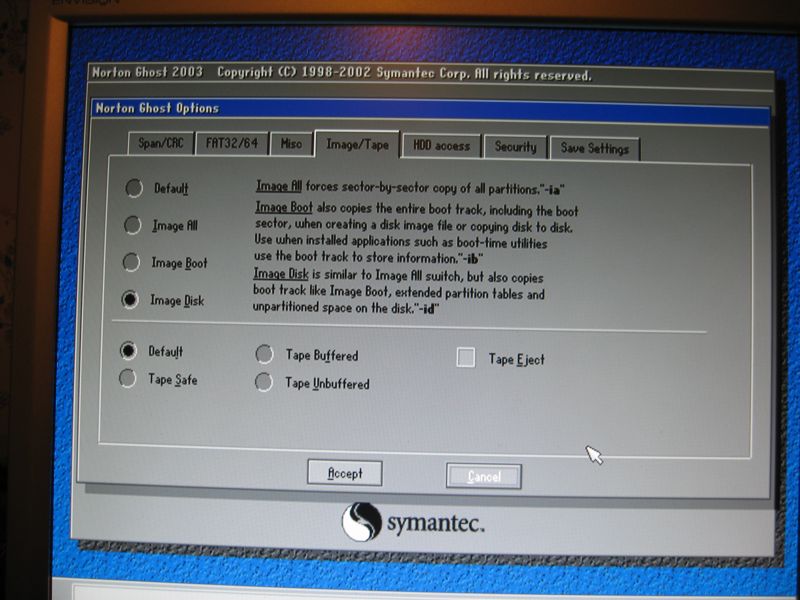
Third, clone your hard drive using a disk-to-disk (keeping MBR and extended partition data in "Image/Tape" options screen- use "Image Disk") using Norton Ghost 2003 from a GHOST FLOPPY BOOTED PC. Clone it to a new disk, that is, like a 5400RPM 80GB drive. I used a Toshiba MK8032GAX, which is NOT an expensive automotive rated hard drive. Or, you can just backup the drive to a ghost image file. You must use "Image Disk" in the "Image/Tape" options screen even for the backup!!

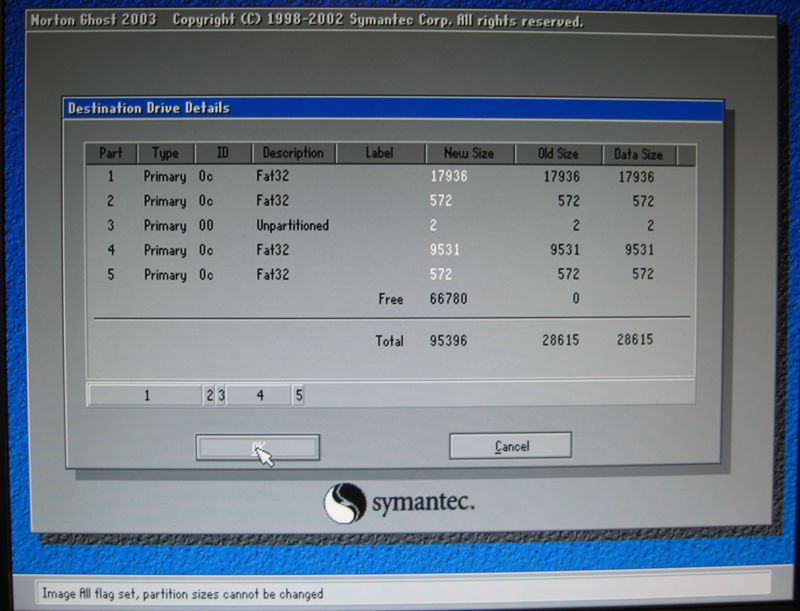
The HDD contains 4 partitions. These partitions are named:
LDATA (Fat32 17932MB) #1 in picture
SDATA (Fat32 572MB) #2 in picture
??? (Unpartitioned 2MB) #3 in picture
MSV (Fat32 9528MB) #4 in picture
USER (Fat32 572MB) #5 in picture
BUT, there is a 2MB partition of unallocated space BETWEEN partitions SDATA and MSV. Due to the limitation of 4 partitions on a FAT32 disk, MOST cloning will FAIL. Ghost 2003 handles this with the "Image All" option. But, ONLY if you use Ghost in DOS booted from floppy (make a Norton Ghost boot disk from within Ghost)

My drive, imaged this way with Ghost has not crashed or rebooted in 3 days. My Z2 is a June model, bypassed. I have tested Western Digital, Seagate and Toshiba drives, all crashed unless cloned with Ghost. Shock was tested at 25mph runs over local speed humps (10 hump test). I have ripped 20 albums watched DVDs while driving, etc etc to try to make it crash and it doesn't. We finally have a 5400RPM solution.

Now, we need to find a tool to expand the MSV partition and , shazamm, we have a 30GB music partition, instead of the 9GB they have allocated.
But, like I said, most software fails to handle this disk because it has 5 partitions. Who is a hard drive expert than can shed some light on expanding the MSV partition?
Attached Files (2)
AVIC_drive_partitions.jpg
AVIC_Ghost_options_dialogue.jpg
Posted Aug 08, 2007 · 22:34 UTC#16
For expanding the volume I would recommend using the diskpart tool that ships with Windows Vista. It will easily expand that partition. You can use it by booting to a Vista DVD and entering the command line. Alternatively you can use it while running Vista if you have the drive plugged into a secondary IDE channel or external esata or firewire enclosure. I haven't tested this yet, but i will shortly once my new drive arrives.

Hope this helps!
Posted Aug 20, 2007 · 19:58 UTC#17
33k! said:
BUT, there is a 2MB partition of unallocated space BETWEEN partitions SDATA and MSV. Due to the limitation of 4 partitions on a FAT32 disk, MOST cloning will FAIL. Ghost 2003 handles this with the "Image All" option. But, ONLY if you use Ghost in DOS booted from floppy (make a Norton Ghost boot disk from within Ghost)

My drive, imaged this way with Ghost has not crashed or rebooted in 3 days. My Z2 is a June model, bypassed. I have tested Western Digital, Seagate and Toshiba drives, all crashed unless cloned with Ghost. Shock was tested at 25mph runs over local speed humps (10 hump test). I have ripped 20 albums watched DVDs while driving, etc etc to try to make it crash and it doesn't. We finally have a 5400RPM solution.

Now, we need to find a tool to expand the MSV partition and , shazamm, we have a 30GB music partition, instead of the 9GB they have allocated.
But, like I said, most software fails to handle this disk because it has 5 partitions. Who is a hard drive expert than can shed some light on expanding the MSV partition?

The unallocated space doesn't matter. I've cloned my Z2 drive using standard ghost copy (which gets rid of that 2mb space) to a bone stock drive and it works perfectly. The windows OS recognizes 4 partitions and everything works fine.

I went with a few different routes yesterday for testing. The extreme route, I got a 7200rpm Seagate Momentus 100G drive. The other route some old 60G drive I found kicking around, not sure of RPM's or what not.

First test, did a straight clone from my virgin Z2 drive onto the 60G drive without changing partition sizes using GHOST. Everything worked perfect. Spent about an hour using this setup, driving, ripping, playing from library, routing using Nav.

Next, I cloned from the virgin Z2 again to the 60G drive, this time I increased MSV partition to make use of all 60G. It took about 10 mins of driving around doing the same test process before the unit started rebooting on it's own.

Seeing as some people have reportedly increased space by 10G (to 19G), I cloned from the virgin Z2 again and only increased the space by 10G. Drove around for about 30 mins doing the same test, and everything was good again.

Onto the 7200rpm drive. I wanted to improve performance so I went and played with the 7200rpm drive.

Cloned the image to standard size, thing rebooted itself every 10 mins. Cloned the image to 100G full size (just for kicks) and it rebooted itself every 10 mins. As an interesting note, the hard drive free space screen shows 48% used with the full use of the 100G drive, even though it was from a virgin image.

So I figured at this point, the 7200 drive made the interface feel faster, but it must be vibrations that's killing it, since it's rebooting at standard partition sizes. So I parked the car and sat in it for 10 mins ripping CD's, and sure enough it rebooted itself.

Next, I thought it was heat. Let the unit cool down completely, turned on AC and blew cold air on the unit. Fired it up, rebooted really fast (like 3 mins into ripping a CD). Pulled the HDD out it was only slightly warm, pretty much cold. So not heat related. At this point, I'm thinking the power draw is too high on the 7200rpm drive.

So, after testing so far, I've come to this conclusion.

You can only increase the MSV partition slightly. The software will get confused with too much free space, reporting incorrect usage, and rebooting on it's own when it encouters a problem.

You can't use 7200rpm drive, well at least not the Seagate Momentus drives. The power draw is too high, unit will reboot randomly.

That's all I got so far, will be testing a few more faster drives hoping to figure it out. For now, I'm driving around with an unknown brand 60G drive that I pulled out of some old laptop, with the MSV partition increased by 10G, free space reported properly, and no unallocated space gap between the 2nd and 3rd partitios.
Posted Aug 21, 2007 · 10:30 UTC#18
Very good observations and testing. Really doesn't make sense why you can extend a partition 10gigs but not at 10+ gigs without causing it to reboot. My knowledge shows it's limitations here, what kind of 'transformer/module' does it use to supply power to the hdd? If we knew the voltage of that we could figure out exactly what we need to swap it with in order to sustain power to the new and higher voltage, higher rpm hdd. However there has to be a deeper explanation as to why it shuts off after 10 mins or so.
Posted Aug 25, 2007 · 05:46 UTC#19
Ok, I've been reading up and am getting ready to make the plunge to a bigger drive.

Can someone tell me if the latest version of Norton Ghost will work? Looking at Symantec's website, it is version 12.0.

Also, looking at the instructions in the first post - my PC does not have a floppy drive, can I leave a DVD-ROM drive connected and use the CDRom Iso (Magic_Boot_Disk_ISO_v2.0)?

Thanks,

Jason
Posted Sep 04, 2007 · 02:47 UTC#20
Just tried to upgrade my Z1 to Z2 and increase to a 40Gb disk at the same time. When I put the new disk in the Z1, it came up with a message "Cannot use HDD" (in three languages).

I had a couple of issues which may be the cause, but would appreciate advice...

1) When I wrote the Z2 image using Acronis, it expanded all the directories to take advantage of the extra space. I used Paragon HD Manager to shrink all but the user partition back to the original size, and take up the extra space with a bigger user partition.
2) The partitions were not names USER etc, they were all named something like "DO NOT DELETE". I didn't change these.
3) Two of the screws attaching the original disk to the carrier would NOT come out, so I put the new disk in without a carrier.

Any idea which of the above might have caused my problem, or if it could have been something else entirely?

BTW, when I put the old disk back in, everything worked perfectly again.
Posted Sep 04, 2007 · 02:55 UTC#21
I know you have to use the hdd holder it engages a switch of some sort.
Posted Sep 22, 2007 · 22:54 UTC#22
I have compared the original Z1/Z2 hard drive (MK3029GACE) to the replacement that I and a few others are using (MK6034GAX).

The original drive is an "automotive" drive. From the specs, this means that it has a higher temperature rating, both operational and non-operational. Although this is only a "tested rating", it does concern me as the original drive is capable of operating between 3.2-150*F and the replacement 41-131*F. Non-operating, -40-176*F and -4-140*F respectively. Being in a VERY hot climate that I am, it is not uncommon for vehicle interior temperatures to approach the 160*F mark. Yes, you can cook a chicken or an egg in your car, not to mention burn a metal seatbelt mark into your hand (can't even touch a leather steering wheel!) I also wonder about users in very cold climates, that drop well below -4*F.

It is interesting to note that the operating shock is 125Gs HIGHER on the non-automotive drive. I guess this is because laptops will fall farther that a vehicle and hit harder, requiring a higher shock rating.

Also voltage requirements on the 60GB 5400RPM are a lot lower than on the 30GB 4200RPM.

Anyways, let me know what you guys think. Other than the temperature concern, the drive runs great!
Attached Files (1)
Posted Oct 16, 2007 · 14:23 UTC#23
jbhorne said:
I have compared the original Z1/Z2 hard drive (MK3029GACE) to the replacement that I and a few others are using (MK6034GAX).

The original drive is an "automotive" drive. From the specs, this means that it has a higher temperature rating, both operational and non-operational. Although this is only a "tested rating", it does concern me as the original drive is capable of operating between 3.2-150*F and the replacement 41-131*F. Non-operating, -40-176*F and -4-140*F respectively. Being in a VERY hot climate that I am, it is not uncommon for vehicle interior temperatures to approach the 160*F mark. Yes, you can cook a chicken or an egg in your car, not to mention burn a metal seatbelt mark into your hand (can't even touch a leather steering wheel!) I also wonder about users in very cold climates, that drop well below -4*F.

It is interesting to note that the operating shock is 125Gs HIGHER on the non-automotive drive. I guess this is because laptops will fall farther that a vehicle and hit harder, requiring a higher shock rating.

Also voltage requirements on the 60GB 5400RPM are a lot lower than on the 30GB 4200RPM.

Anyways, let me know what you guys think. Other than the temperature concern, the drive runs great!


I want to do the same thing that you did, remove the original Z1 HDD and just install this new MK6034GAX unit with the Z2 software preloaded. I am just wondering if you ever had to put the original Z1 HDD back it for any reason? You see I live in Toronto, Ontario, Canada and in winter it gets cold. So my question is can I go switch between drives when the temperature gets too cold? Can we do this? would there be a lockup problem by switching drives every 6 months? Any input from anyone would be great.
Posted Oct 22, 2007 · 22:23 UTC#24
grahamtwatson said:
Just tried to upgrade my Z1 to Z2 and increase to a 40Gb disk at the same time. When I put the new disk in the Z1, it came up with a message "Cannot use HDD" (in three languages).

I had a couple of issues which may be the cause, but would appreciate advice...

1) When I wrote the Z2 image using Acronis, it expanded all the directories to take advantage of the extra space. I used Paragon HD Manager to shrink all but the user partition back to the original size, and take up the extra space with a bigger user partition.
2) The partitions were not names USER etc, they were all named something like "DO NOT DELETE". I didn't change these.
3) Two of the screws attaching the original disk to the carrier would NOT come out, so I put the new disk in without a carrier.

Any idea which of the above might have caused my problem, or if it could have been something else entirely?

BTW, when I put the old disk back in, everything worked perfectly again.


I took the plunge and upgraded to an 80gb drive to load the z2 image onto and hopefully increase the music space, which I am still figuring out. Anyway I ran into the same problem as you with only one of my screws not coming out and got stripped and so I called pioneer and ordered a new tray that the hdd screws onto for $10. Now if I ever need to swap back to the original drive I can and I can just pull the one drive and plug in the other without needing to unscrew the drive from the tray.
Posted Nov 01, 2007 · 15:14 UTC#25
Does anyone know the size of the torx bit needed to get the HDD out? I thought I read it before, but cannot find it for the life of me.
Page 1 of 4