Here we go USA/Canada RedLight and Speedcam POI. Just download the zip extract it to the root of the SD Card and you should be able to feed it into your AVIC. Enjoy.
This is based on POI-Factory POI. Thanks to VBLUE42 for the attachment.
Here we go USA/Canada RedLight and Speedcam POI. Just download the zip extract it to the root of the SD Card and you should be able to feed it into your AVIC. Enjoy.
This is based on POI-Factory POI. Thanks to VBLUE42 for the attachment.
Does this have the audio alerts or speed cam icons?
I'm new to this site...What to you my root of the SD! if you could explain more that would be kool!
I'm new to this site...What to you my root of the SD! if you could explain more that would be kool!
Extract it into your storage card root folder which means /Storage Card/
after extract your SD card should contain the folder "POI" and "usericon". Put your SD card into the Pioneer Unit .... go to manage poi you can change settings in there so that those poi can appear on map.
Does this have the audio alerts or speed cam icons?
No our pioneer unit doesn't have the audio alert features for poi.
Yes it have cams icon, just make sure you change the view options in Manage POI.
If im correct, I believe its Settings-> Navi Settings->Visual->Manage POI
Ok so I have found what appears to be yet another bug in the F series OS. Not all of the POI icons will appear in the POI select screen when viewing. To test this make sure you have all of the speed/redlight cam POI's on your SD card. Then hit MENU, DESTINATION, POI. Be sure to hit POI and not USB/SD. In the list of all the POI's some of the POI's wont appear in the list. It is imperative that they show up in this list or they will not show on the map which will defeat the purpose of these POI's. All will appear on the SD card but not in the POI list. I have for instance CENTRAL US REDLIGHT CAMERA 1 and 3 but 2 does not appear. If any of you are getting all of them to show under the POI menu let me know.
So I followed the instructions, but it doesn't seem like you can download ALL THE DATA into the Pioneer.
So far I'm only able to save each entry at a time......nobody is going to spend time doing that........
There has to be a way to download everything at once and be done with this.
Which instructions did you follow?
I think mine are there. but it will only allow the poi near my position. so east 2 may not show up cause its no where near me.
when I first started car with sd in it ran really sluggish so I took it out then put it in and it ran fine since. I keep sd in now. 
Which instructions did you follow?
From one of the threads here.
My Garmin Nuvi that costs $250 can do it in 2 minutes and retain 4000 POI's into its internal harddrive.
It's just sad an $1100 unit can't.
I will be calling Pioneer about this.
And also this stupid limitation of 300 POI's, what's that all about.
Post here what they tell you. Dont expect to hear what you want to hear.
Post here what they tell you. Dont expect to hear what you want to hear.
Called them at lunch:
So the Pioneer doesn't have an internal HDD, I didn't know that.
The rep said that you can't save anything to the unit and if you pull the SD card out, the POI's are gone.
WOW, WHAT A GREAT INVENTION! An $1100 unit that can't save POI's......
I advised him that Pioneer got their work cut out for them because this unit needs a LOT of work. I told him about the noisey fan in the back and he said that's normal for this time of year.
He then told me: "Well maybe you're not ready for an in dash unit"
I'm going to test the hell out of this unit this weekend, if I'm still feeling the same as I do now, this unit is going back and I'm done with Pioneer for good.
The F-series do not have an internal hard drive but they do have a 2GB flash drive which more or less acts like a hard drive. It has roughly 1.6GB used, so there's about 400MB available - although I wouldn't want to fill it right up, just in case. It might need the extra space for other things, like running a firmware upgrade etc.
You could probably use windows mode / testmode to put poi's onto the flash drive. There's a POI directory in the iGo directory: \My Flash Drive\APL2\iGo\Content\POI
I haven't gotten around to messing with POIs yet, but it's further down on my to-do list. It's unacceptable (to me) that I'd need to leave a card in there for custom POIs.
Edited to add: re. the fan noise - I know every situation is different, but in my case I cannot hear the fan at all unless the car is turned off (with the nav unit on) and there is no music playing. Only then, can I hear the fan. If you can hear the fan over the sound of the car engine and over the music, then the only thing I can suggest is this: Make very sure that there is nothing blocking the fan, behind the nav unit. They make a point of this in the installation manual - the fan exhaust must not be obstructed. If the fan's obstructed, it will spin too fast / work too hard, and that will contribute to louder than usual fan noise.
Can some one please write a Step By Step on how to get the POI working off the SD.
I took them from the Zip. and then got the POI and other folder to the SD
went to the car and then to the main menu.
then went to settings and navi settings
then visual and manage POI
then I am lost
I made a new group and all that but then what there nothing that allows ne to add from the SD. and when I got to mean menu and then destination then SD all it says is Contacts and thats all.
Ahhhhhhh
He then told me: "Well maybe you're not ready for an in dash unit"
That's good ol' Pioneer service for you. No respect for the customers that keep their shitty business going. If it wasn't for the update and hacks that this unit has I would be a DNX owner, especially if a rep said that to me.
I agree, If it where not for all the Hacks that every one comes up with I would not own this unit.
I am waiting for google to make a duel din or a navi already. It will happen I know it.
Also Quick Update
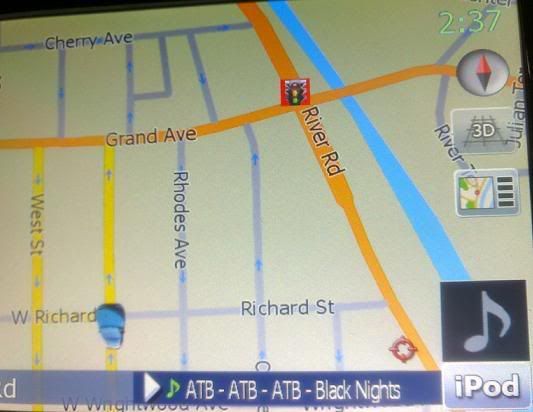
I got the speed cams working
But can I edit/delete one speedcam that is wrong? I am driving the same way every day, and the GPS alerts me of a false speedcam...
Does anyone know how to get custom images to be attached to POIs without using AVIC Feeds?
I have a good bit of POIs i use for my Garmin that i can convert using the online POI Editor to KML but they list more than 300 locations which will result in an error in AvicFeeds which means i wont be able to add icons to the file.
Also AF cuts my 679 csv location list to 300 but when i try to cut the first 300 out using excel to get a second set of 300 i get an error when trying to save as csv in excel.
I also keep my 2gb SD in f900 if that matters.
How does it alert you of the speedcam? Mine just shows the icon in the intersection that has a cam.
usa version does not do audio alerts
Does any1 know why that is? Is that something hackable for the US owners? I know there is plenty of us that would love this feature!
Does any1 know why that is? Is that something hackable for the US owners? I know there is plenty of us that would love this feature!
Has been hacked a few minutes ago. Will post in Progress Report thread once I have some other things working....


Disclaimer: Obey all laws, do not speed, do not run red lights.
Now the fun part. By the looks of HackZ' screen, he imported POIs with red light cameras. This is nice, but does not give you warnings or anything, as those are just another bunch of POIs.
Now, to enable real speed camera functionality, we need two things:
1. List of speed camera settings.
2. Code that enables them.
Code is easy: I've posted my scripts in this thread: http://www.avic411.com/forum/viewtopic.php?t=17820
Getting cameras in: you need a specially formatted text file that has camera coordinates, type (fixed, mobile, speed limit, type, etc). I've had good luck getting the file from http://www.gps-data-team.com/poi/united_states/safety/
Make sure you download the file in iGO format.
Reading one of the INI files, you should be able to save the file on your storage card:
\Storage Card\poi\speedcam\
and that should work. I've just copied the file to the unit's memory in ...APL2\IGO\Content\SpeedCam directory. It is recommended to delete file already there.
Unit will think for some time and slowly convert the text file into an internal database format (.spdb and .spud for manual updates).
Now, the cameras should show on screen. If you use my script files, you can go to Warnings section of system settings and specify how you want to be notified of them. Default sound is rather weak, but apparently can be changed and nicely configured... Still working on that.
To add a new camera: Place a cursor on the map in the position where camera is at. Press Map Info button. Press Save As. There is a new option: Save as Camera. Select camera type, speed limit, and save.
Similarly, if you put the cursor on an existing cameras, the button changes to Edit Camera.
Have fun.
Amazing!, way to go, just increased functionality 10 fold IMO.
Absolutely awesome, it does work. 