Search Archive

Maverickster's Mods - UPDATED 12/9/08

By Maverickster · Dec 03, 2008in Hacks/Mods💬 430 posts👁️ 106,956 views
Page 1 of 18
Posted Dec 03, 2008 · 07:36 UTC#1

Well, I originally came here to simply learn how to do the bypass on my F900....one thing led to another and here I am a week later having performed a number of mods that make this unit dramatically more user-friendly than it was when I initially got it. Since I spent an inordinate amount of time wading through the information here (I've literally read just about every post in every thread at least once and several of them several times) to ferret out useful information, I thought it would be helpful to have a thread that shows what I did and then breaks down each mod. Some of these were made by me; some were lifted wholesale from others here; but none of it would've been possible without this community of very well-informed individuals; you should be very proud of what you have here. Special thanks to Boris, Stephanie, Keeper, and Vorian.


Alright, here's what I did:


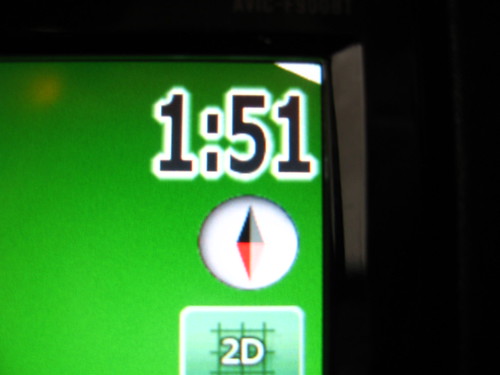
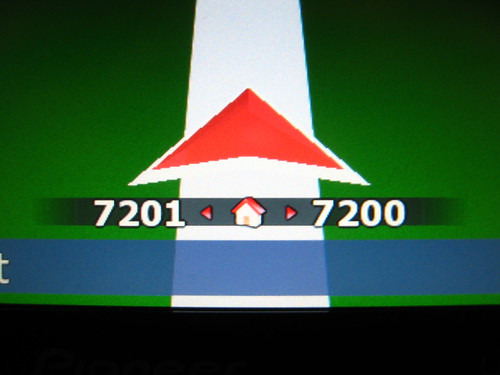
1. Clock/Street Number Info - Increased its size. Also, pressing the clock displays the street numbers adjacent to your current GPS location. Pressing the street numbers makes them go away.


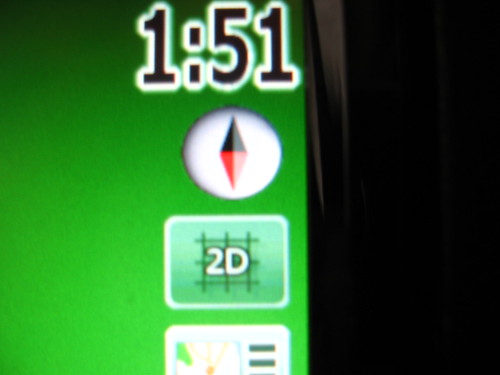
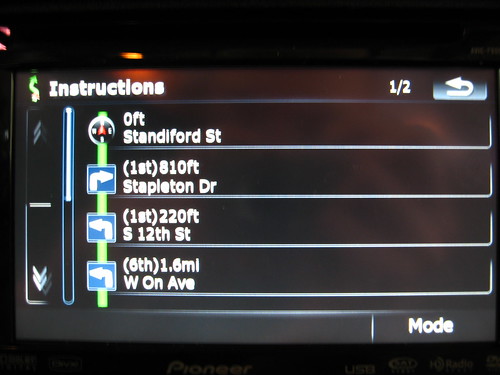
2. Compass - This is a simple man's detour. When no route is active, it's just a compass. When a route is active, pressing the Compass brings you directly to the edit itinerary screen where you can quickly avoid/detour-around route segments.


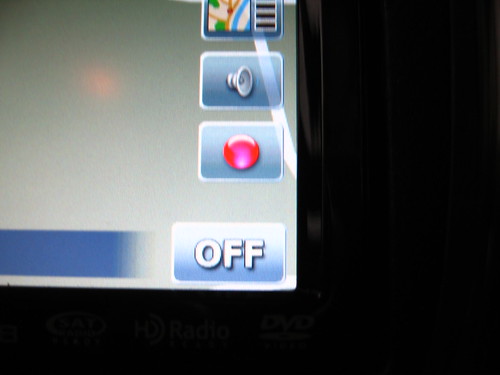
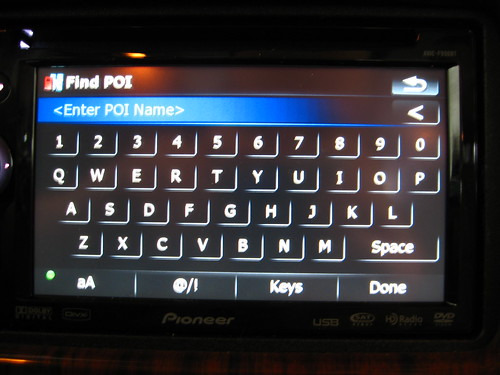
3. Terminate Route / POI Select Button - When no route is active, this button is the POI Icon; pressing it brings you directly to the keyboard for POI searches near your GPS location (this was tougher than I thought it was going to be) for on-the-fly (assuming you have the bypass) quick navigation. When a route is selected, this button is Red; pressing it terminates the route.


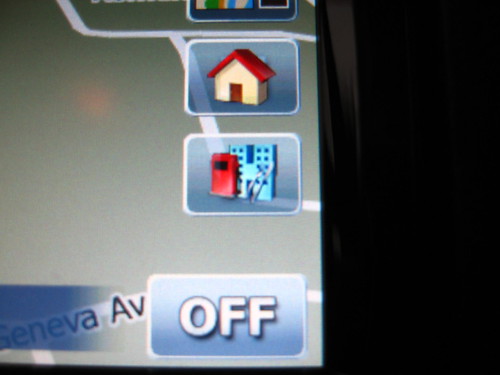
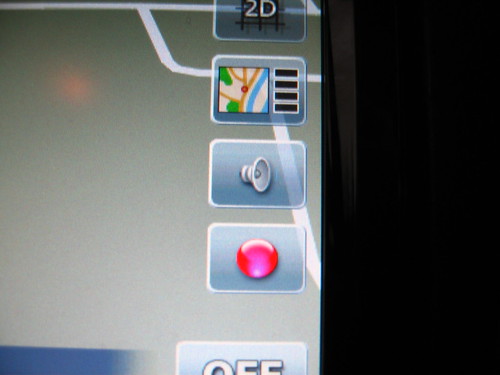
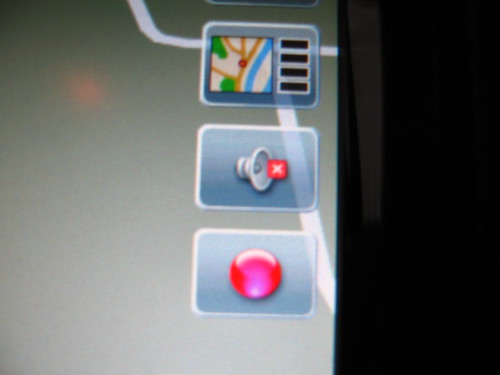
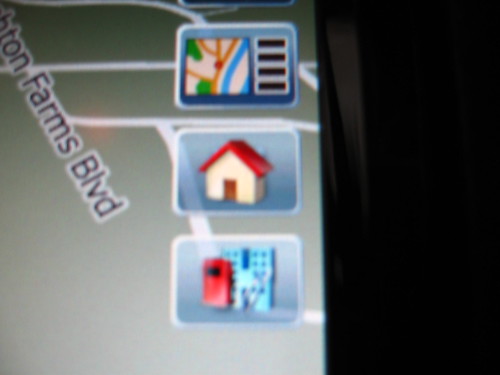
4. Navigation Mute / Address Select Button - When no route is selected, this button is a House Icon; pressing it brings you directly to the address select screen for on-the-fly (assuming you have the bypass) quick navigation. When a route is selected, pressing the button mutes the navigation commands (nothing else is muted); pressing it again unmutes.


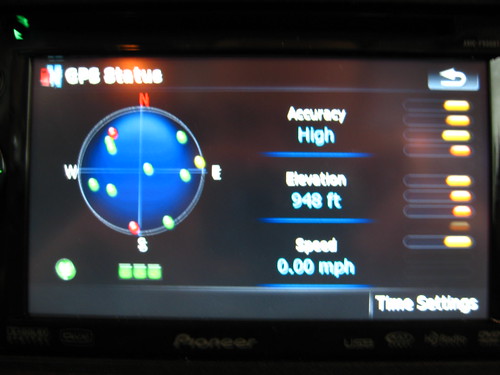
5. Satellite Signal Strength Icon - The color of the icon indicates its signal strength (green = high accuracy 3d fix; Yellow = low accuracy 2d fix; Red X = no fix; Red: GPS antenna problem). Pressing the icon brings you to the GPS Info screen.


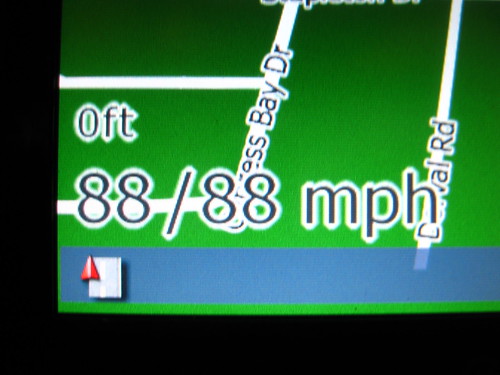
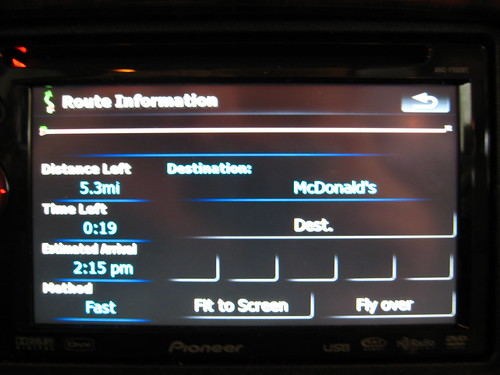
6. Speedo/Altimeter/Route Info - The map scale has been removed completely (what a PITA), and the function of the route info box (bottom left) has been changed. When no route is selected, the Route Info box is gone and in its stead is a simple altimeter (showing altitude in feet, not miles) and speedometer (and when a speed limit information is detected, that's also displayed). When a route is selected, a modified and much more legible version of the Route Info box appears.


That's it, and frankly, I think I'm nearly finished with my mods.


MY DATA ZIP FILE IS HERE. Of course, I do not guaranty the effectiveness of this file and by downloading the same, you are agreeing to use it at your own risk and to hold me harmless from any issues it may cause with your unit.


Code, bmps, and specific information to the individual hacks follow in the following posts.


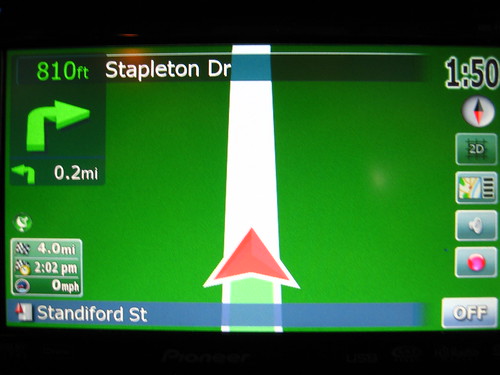
Here are pictures:


No Route Active:
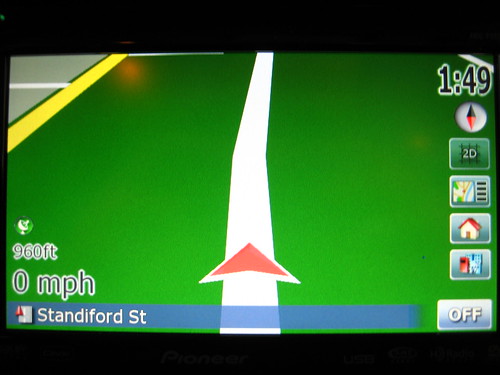
3090340442_b24b591960_d.jpg


Route Active:

3090342032_dfa29e6e4b_d.jpg


Thanks all!

Posted Dec 03, 2008 · 07:42 UTC#2

CLOCK/HOUSE NUMBER MOD


Step 1 - Find the ";time" code in the navigatemap_800_480.ui file in the DATA/ui_pioneer/800_480/ui folder in the DATA.zip file. Replace it with the following and edit the font size, font color, and alignment to taste:


;Clock


Step 2 - Find the first occurrence of "" in the navigatemap_800_480.ui file in the DATA/ui_pioneer/800_480/ui folder in the DATA.zip file. Then add the following code beginning on the next line after the first "":


;house numbers display 


Step 3 - Add the bmps in the attached zip file to the DATA/ui_pioneer/800_480/ folder in the DATA.zip fle.


RESULTS: This will make the clock bigger (although you can adjust the font size in the code yourself) and will make it clickable. If you click the clock, it will display the house numbers adjacent to your current location immediately below the current gps location arrow. Press the house numbers to clear them.


Oversized Clock:

3089503813_4c6749686f_d.jpg


Street Number that Appear when Clicking Clock:

3089505113_9191892723_d.jpg

housenumbers.zip

Posted Dec 03, 2008 · 07:50 UTC#3

COMPASS DETOUR MOD


Find this in the navigatemap_800_480.ui file in the DATA/ui_pioneer/800_480/ui folder in the DATA.zip file :


And replace it with this:


;Compass

;	


RESULT: This will make the Compass clickable when a route is active. Clicking the compass will bring you directly to the Itinerary screen where you can select a segement to avoid/detour around.


Compass:

3090345202_42a51bb4ec_d.jpg


Itinerary Screen Brought Up By Clicking Compass:

3090346344_839321aa10_d.jpg

Posted Dec 03, 2008 · 07:55 UTC#4

TERMINATE ROUTE/POI SELECT MOD


Step 1: Add the following code to the navigatemap_800_480.ui file in the DATA/ui_pioneer/800_480/ui folder in the DATA.zip file right above the ";time" code:


;Delete Route - POI Select


Step 2 - Add the bmps in the attached zip file to the DATA/ui_pioneer/800_480/ folder in the DATA.zip fle.


RESULT: This will add two alternative buttons in the same location. When no route is active, a POI Button will appear which, when pressed, brings you directly to the keyboard for entering a POI around your current location. When a route is active, a red button will appear which,when pressed, terminates the current route.


Terminate Route Button:

3089508485_248622548e_d.jpg


Route Termination Confirmation Brought up by Clicking Terminate Route Button:

3089509983_68510c88b0_d.jpg


POI Button:

3090352524_0b54f1a779_d.jpg


POI Enty Screen (around current GPS location) Brought up by Clicking POI Button:

3090353756_07c351d86e_d.jpg

POI_Select_Button.zip

Posted Dec 03, 2008 · 08:00 UTC#5

SATELLITE SIGNAL STRENGTH BUTTON MOD


Add the following line of code to the navigatemap_800_480.ui file in the DATA/ui_pioneer/800_480/ui folder in the DATA.zip file near the bottom, in the "" layer, just above the closing layer (i.e. "") tag:


; GPS Status
;	


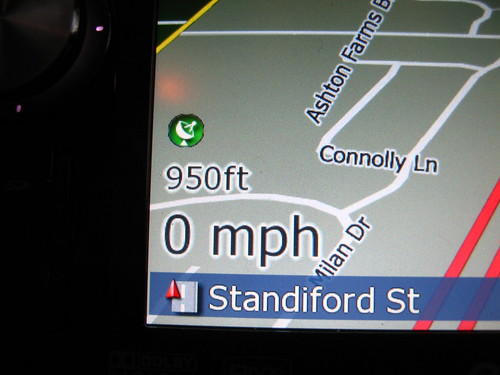
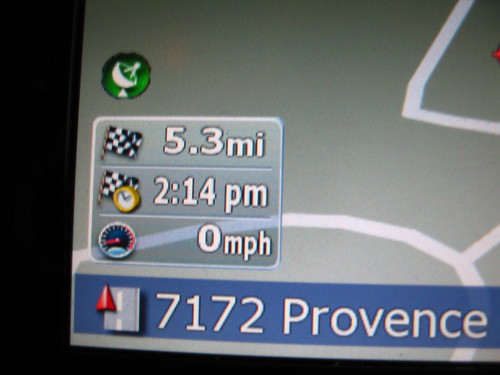
RESULT: This adds a small clickable icon which indicates the GPS satellite signal strength. The icon is located immediately about the altitude reading on the bottom left when no route is active; when a route is active, it is located immediately above the Route Info box. Clicking the icon brings you to the GPS Strength screen.


Satellite Signal Strength Icon when Route not Active:

3089516635_e294765c32_d.jpg


Satellite Signal Strength Icon when Route Active:

3090356878_b15104d70d_d.jpg


Pressing the Satellite Signal Strength Icon Brings you to the GPS Status Screen:

3090357980_9b8ff01a88_d.jpg

Posted Dec 03, 2008 · 08:17 UTC#6

SPEEDO/ALTIMETER/ROUTE INFO MOD


Step 1: To remove the Map Scale, open up and search through the code of every file in the DATA/ui_pioneer/common/ui folder in the DATA.zip file. The following code should be changed as follows EVERYWHERE it appears:


Replace this:


map.ZOOMCONTROL_SHOW 1


with this


map.ZOOMCONTROL_SHOW 0


Step 2: To replace the Route Info box in the bottom left corner, find the following code in the navigatemap_800_480.ui file in the DATA/ui_pioneer/800_480/ui folder in the DATA.zip file:


;original three line nav info box
;	
;	
;	
;		
;	
;	
;	
;	
;	
;						         
;	
;	
;
;	
;modified info box

; start hidden


hide


;end hidden


;	


; GPS Status
;	


;current speed (and speed limit where present) and altitude when not navigating


;	


RESULT: This will result in the removal of the Map Scale. This will also result in the removal of the original Route Info Box. When no route is selected, the altitude (in feet, not miles) and speed will appear in the lower left hand corner (when speed limit information is available to the device, it will also show the current speed limit). When a route is selected, a more legible version of the Route Information Box will appear.


Information Displayed when Route not Active:

3089516635_e294765c32_d.jpg


If Speed Limit Information is Available, it looks like this (1st number is current speed; 2nd number is speed limit):

3088013823_0f572fdd8c_d.jpg


Information Displayed when Route is Active:

3090356878_b15104d70d_d.jpg


Pressing the Route Info Box brings you to this Route Info Screen:

3090359158_c135a8e821_d.jpg

Posted Dec 03, 2008 · 08:38 UTC#7

VOICE GUIDANCE MUTE / ADDRESS SELECT MOD


Step 1: Add the following code to the navigatemap_800_480.ui file in the DATA/ui_pioneer/800_480/ui folder in the DATA.zip file right above the ";time" code:


;Voice Guidance Mute - Address Select


Step 2: Add the bmps in the attached zip files to the DATA/ui_pioneer/800_480/ folder in the DATA.zip fle.


RESULT: This will add two alternative buttons in the same location. When no route is active, a Address Button (identified by a House icon) will appear which, when pressed, brings you to the address entry screen. When a route is active, a speaker button will appear which, when pressed will mute the navigation guidance voice (nothing else will be muted); when pressed again, the navigation guidance will be unmuted.


Voice Guidance Mute Button:

3090350284_1ebab65478_d.jpg


3089512557_098f3a8987_d.jpg


Address Button:

3089521319_2e56317934_d.jpg


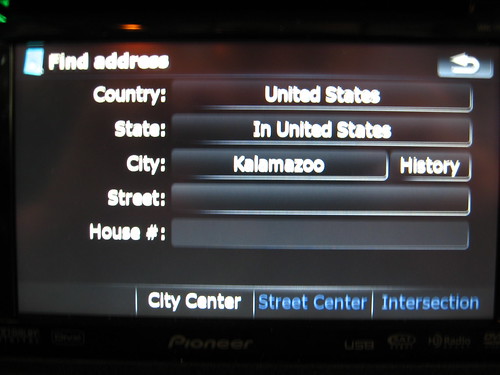
Address Entry Screen Brought up by Pressing Address Button:

3089522565_d68133a94e_d.jpg

Mute_Address Buttons.zip

Posted Dec 03, 2008 · 08:39 UTC#8

Reserved.

Posted Dec 03, 2008 · 08:39 UTC#9

Reserved.

Posted Dec 03, 2008 · 13:16 UTC#10

Great job!

I'm saving this page for when I get my F900 and do some modding...

Posted Dec 03, 2008 · 14:30 UTC#11

That is just about perfect! I am going to redo my 90 like this with the exception of adding the nav voice mute button. "prepare to continue forward" AUGG!!! I might add it in the same location as the sat info button. I also thought about the need for sat strength info. In my airplane I have a garmin style nav unit that has a small little dot placed in the center of my screen. That dot is only 3 or 4 pix in size. It turns different color depending on the validity of the GPS signal I am getting. I want to adapt that to a dot in the center of the arrow on my 90bt.


Good work!

Posted Dec 03, 2008 · 15:07 UTC#12

this is awesome.. thanks much...


will any of this code interfere with the VOICE MUTE button?

Posted Dec 03, 2008 · 15:50 UTC#13

Great stuff - now I know what I'm going to do this weekend...

:lol:

Posted Dec 03, 2008 · 16:20 UTC#14
That is just about perfect! I am going to redo my 90 like this with the exception of adding the nav voice mute button. "prepare to continue forward" AUGG!!! I might add it in the same location as the sat info button. I also thought about the need for sat strength info. In my airplane I have a garmin style nav unit that has a small little dot placed in the center of my screen. That dot is only 3 or 4 pix in size. It turns different color depending on the validity of the GPS signal I am getting. I want to adapt that to a dot in the center of the arrow on my 90bt.


Good work!


If you do that, let me know if you find a place to put it without increasing "screen clutter". Note that the clock does not currently have anything assigned to it, so that might be a good place.

Posted Dec 03, 2008 · 16:25 UTC#15
this is awesome.. thanks much...


will any of this code interfere with the VOICE MUTE button?


If you follow the instructions found here, then no, it won't conflict:


http://www.avic411.com/forum/viewtopic.php?t=18624


Only problem is that if you use all of my hacks, you'll have to find somewhere else to put the Mute button since pretty much the entire X=720 column is taken. Shouldn't be too tough. Just play around with the X and Y coordinates until you find a place you like. Or, alternatively, use the clock as the button. This also shouldn't be too tough, but will require something of a working knowledge of how the code works.


Good luck!


--Mav

Posted Dec 03, 2008 · 16:38 UTC#16

Hey Mav,


Nice! Thank you for the hard work.


I was going to suggest everybody to post their mod scripts instead of the DATA.ZIP files. This is much easier to select what to mod and what not to mod. It normally take me hours to compare the differences between two DATA.ZIP files.

Posted Dec 03, 2008 · 16:44 UTC#17
Hey Mav,


Nice! Thank you for the hard work.


I was going to suggest everybody to post their mod scripts instead of the DATA.ZIP files. This is much easier to select what to mod and what not to mod. It normally take me hours to compare the differences between two DATA.ZIP files.


I had the same problem. That's exactly why I did it this way.


Incidentally, I was reading in a thread that is now several months old a suggestion that the Mods (as in Moderators) wanted hacks posted to individual "How To" threads. If a Mod would like to parse this thread into 5 separate "How To" threads (or if s/he would like me to do that), go ahead or let me know.


Thanks!


--Mav

Posted Dec 03, 2008 · 18:34 UTC#18
Hey Mav,


Nice! Thank you for the hard work.


I was going to suggest everybody to post their mod scripts instead of the DATA.ZIP files. This is much easier to select what to mod and what not to mod. It normally take me hours to compare the differences between two DATA.ZIP files.


I've posted this in earlier threads, "WinMerge" is a great/easy/free way to compare the diffreences in 2 txt files.


Can't help on a quick and easy way to compare the (Data.zip) files though. ?? Ol' Emanuel is all I've got.

Posted Dec 03, 2008 · 19:03 UTC#19
Hey Mav,


Nice! Thank you for the hard work.


I was going to suggest everybody to post their mod scripts instead of the DATA.ZIP files. This is much easier to select what to mod and what not to mod. It normally take me hours to compare the differences between two DATA.ZIP files.


I've posted this in earlier threads, "WinMerge" is a great/easy/free way to compare the diffreences in 2 txt files.


Can't help on a quick and easy way to compare the (Data.zip) files though. ?? Ol' Emanuel is all I've got.


Yeah, I've got DeltaView at work to do that part with...it's the "other changes" that can be problematic to chase down (and if you miss a random semi-colon in a random file somewhere it could not work). Thanks though. That's a good tip!


--Mav

Posted Dec 04, 2008 · 08:05 UTC#20
GREEN/RED BUTTON MOD


Step 1: Add the following code to the navigatemap_800_480.ui file in the DATA/ui_pioneer/800_480/ui folder in the DATA.zip file right above the ";time" code:


;Navigation Start Stop


Step 2: Copy the attached bmps into the DATA/ui_pioneer/800_480/ui folder.


Your Y position may vary since this is based on my setup where everything has been moved down as a consequence of the bigger clock. You'll probably need to adjust accordingly.


Hey Mav,


What did I do wrong?


I put this script into my DATA.ZIP, run it.

It started without the green button.

Then after I put in a route, the green and red button show up overlapping.

Then if I press the button, it turn into red and the stop route show up.

If I press cancel in the stop routing screen, button became red.

If I press ok in the stop routing screen, all both buttons are gone again. :?:

Posted Dec 04, 2008 · 15:39 UTC#21
GREEN/RED BUTTON MOD


Step 1: Add the following code to the navigatemap_800_480.ui file in the DATA/ui_pioneer/800_480/ui folder in the DATA.zip file right above the ";time" code:


;Navigation Start Stop


Step 2: Copy the attached bmps into the DATA/ui_pioneer/800_480/ui folder.


Your Y position may vary since this is based on my setup where everything has been moved down as a consequence of the bigger clock. You'll probably need to adjust accordingly.


Hey Mav,


What did I do wrong?


I put this script into my DATA.ZIP, run it.

It started without the green button.

Then after I put in a route, the green and red button show up overlapping.

Then if I press the button, it turn into red and the stop route show up.

If I press cancel in the stop routing screen, button became red.

If I press ok in the stop routing screen, all both buttons are gone again. :?:


Don't know. Works fine for me. Sounds like something is wrong with the "visible model" switch of the Green Button. The Red Button appears to we working correctly, so we'll leave that out of the discussion. Specifically, it sounds like you left off the "!" in the visiblemodel command for the green button. Here is what the green button code SHOULD look like:


Based on your description, it sounds like this is what yours looks like:


The first one is "right". The second one is not. Note the absence of the "!" in the visible model instruction in the second one. This "!" is significant. If it's NOT there, then it's telling the software to display the button when a route is active. If it is there, it's telling the software to display the button when the route is not active.


Failure to include the "!" where indicated would yield the results your describing. If it's not in there, then the buttons are telling the software to display no button when there is no route selected, but to display both buttons when the route is active.


If that's not it, then it might have something to do with the safety mode. Do you have the bypass (either software or hardware) enabled? If not, the green button might not work since it brings you to a keyboard screen and without the bypass enabled, that might be a problem. You may want to try playing with the safety mode. That is, in the code for the green button, change the very last command from 1 to 0. If that doesn't work, try removing the safety mode command altogether and see what happens.


Please take a look and advise.


--Mav

Posted Dec 04, 2008 · 16:42 UTC#22

Don't know. Works fine for me. Sounds like something is wrong with the "visible model" switch of the Green Button. The Red Button appears to we working correctly, so we'll leave that out of the discussion. Specifically, it sounds like you left off the "!" in the visiblemodel command for the green button. Here is what the green button code SHOULD look like:


Based on your description, it sounds like this is what yours looks like:


The first one is "right". The second one is not. Note the absence of the "!" in the visible model instruction in the second one. This "!" is significant. If it's NOT there, then it's telling the software to display the button when a route is active. If it is there, it's telling the software to display the button when the route is not active.


Failure to include the "!" where indicated would yield the results your describing. If it's not in there, then the buttons are telling the software to display no button when there is no route selected, but to display both buttons when the route is active.


If that's not it, then it might have something to do with the safety mode. Do you have the bypass (either software or hardware) enabled? If not, the green button might not work since it brings you to a keyboard screen and without the bypass enabled, that might be a problem. You may want to try playing with the safety mode. That is, in the code for the green button, change the very last command from 1 to 0. If that doesn't work, try removing the safety mode command altogether and see what happens.


Please take a look and advise.


--Mav


Actually, I just copied and pasted your script from the post. So I think the script should be ok but I will double check again.


I do have hardware bypass.


Can you tell me what is safety mode does? I tried to search but did not find any explanation, only saw them in sample scripts.


Thanks again, Mav.

Posted Dec 04, 2008 · 17:09 UTC#23

Don't know. Works fine for me. Sounds like something is wrong with the "visible model" switch of the Green Button. The Red Button appears to we working correctly, so we'll leave that out of the discussion. Specifically, it sounds like you left off the "!" in the visiblemodel command for the green button. Here is what the green button code SHOULD look like:


Based on your description, it sounds like this is what yours looks like:


The first one is "right". The second one is not. Note the absence of the "!" in the visible model instruction in the second one. This "!" is significant. If it's NOT there, then it's telling the software to display the button when a route is active. If it is there, it's telling the software to display the button when the route is not active.


Failure to include the "!" where indicated would yield the results your describing. If it's not in there, then the buttons are telling the software to display no button when there is no route selected, but to display both buttons when the route is active.


If that's not it, then it might have something to do with the safety mode. Do you have the bypass (either software or hardware) enabled? If not, the green button might not work since it brings you to a keyboard screen and without the bypass enabled, that might be a problem. You may want to try playing with the safety mode. That is, in the code for the green button, change the very last command from 1 to 0. If that doesn't work, try removing the safety mode command altogether and see what happens.


Please take a look and advise.


--Mav


Actually, I just copied and pasted your script from the post. So I think the script should be ok but I will double check again.


I do have hardware bypass.


Can you tell me what is safety mode does? I tried to search but did not find any explanation, only saw them in sample scripts.


Thanks again, Mav.


Don't know. I think it is the flag that tells the software what it can and can't do when the car is in drive, but I don't know that for sure. But, if you have the hardware bypass, it shouldn't be relevant. Nevertheless, you might want to try it with it set to 0 and if that doesn't work then with that command removed altogether.


Also, I'd check the visible mode component again to make sure that's right since it seems an awful lot like that's the problem. If it's right (i.e. if there's an "!" for the green button and no "!" for the red button), then you might try replacing the visible mode component altogether. In the command for the Green Button, try replacing this:


visiblemodel="!navigation.has_route"


with this:


visiblemodel="!navigation.distance_to_manuver.valid"


This is how some others (most notably, Stephanie) have toggled buttons on/off based on whether or not a route is active, so it might also work if, for some reason, "navigation.has_route" is not working.


Like I said, this works for me just fine, so I'm not sure what the issue is. I have a AVIC-F900BT with the hardware bypass.


Please let me know how it turns out. Thanks!

Posted Dec 04, 2008 · 18:45 UTC#24

Hey Mav,


The script did miss the "!". Adding it solved the problem. Thanks.

Posted Dec 05, 2008 · 00:38 UTC#25

Hey, first I want to thank Mav for the help getting my GPS button to work (thanks for the sprites man, that solved the problem).


Now I have a question to anyone that can answer me:

I am using linear compass with this code:

;compass


Can I put the detour function on this?


Thanks guys and gals!

Page 1 of 18